
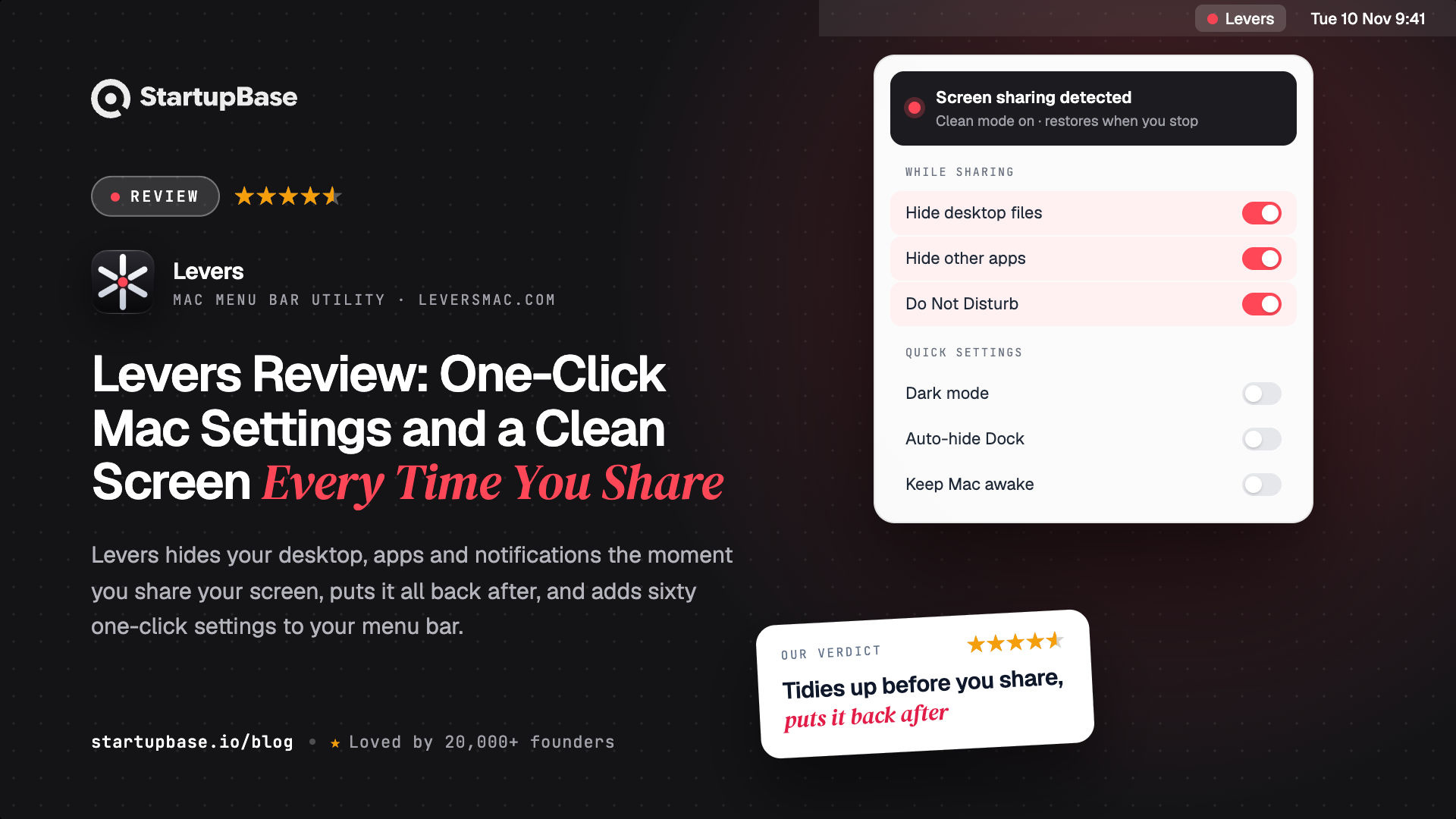
Levers is a Mac menu bar app with sixty one-click switches and actions, modes that change many settings at once, and Recording Mode, which clears your screen when you share or record it and puts everything back afterwards. This review covers Recording Mode, the switches, modes, the palette, Finder settings, pricing, and how Levers compares to Stealthly, Hush, CleanShot X, One Switch, OnlySwitch and Bartender.
Quick Answer
You are about to share your screen on a call. Your desktop is full of screenshots and a file called "contract draft", Messages is open, the Dock shows every app you use, and a notification could pop up at any moment.
So you hide the desktop icons in System Settings, close a few apps, turn on Do Not Disturb, maybe hide the Dock. After the call you forget to put half of it back, and tomorrow you do it all again.
Levers is a Mac menu bar app that does this for you. When a call or a recording app starts capturing your screen, Levers clears what nobody needs to see. When the capture stops, everything goes back the way it was. It also puts sixty Mac settings in your menu bar, from Dark Mode to hidden files in Finder, each one click away.
This review is based on the Levers website, its FAQ and its comparison guide.
What Levers does
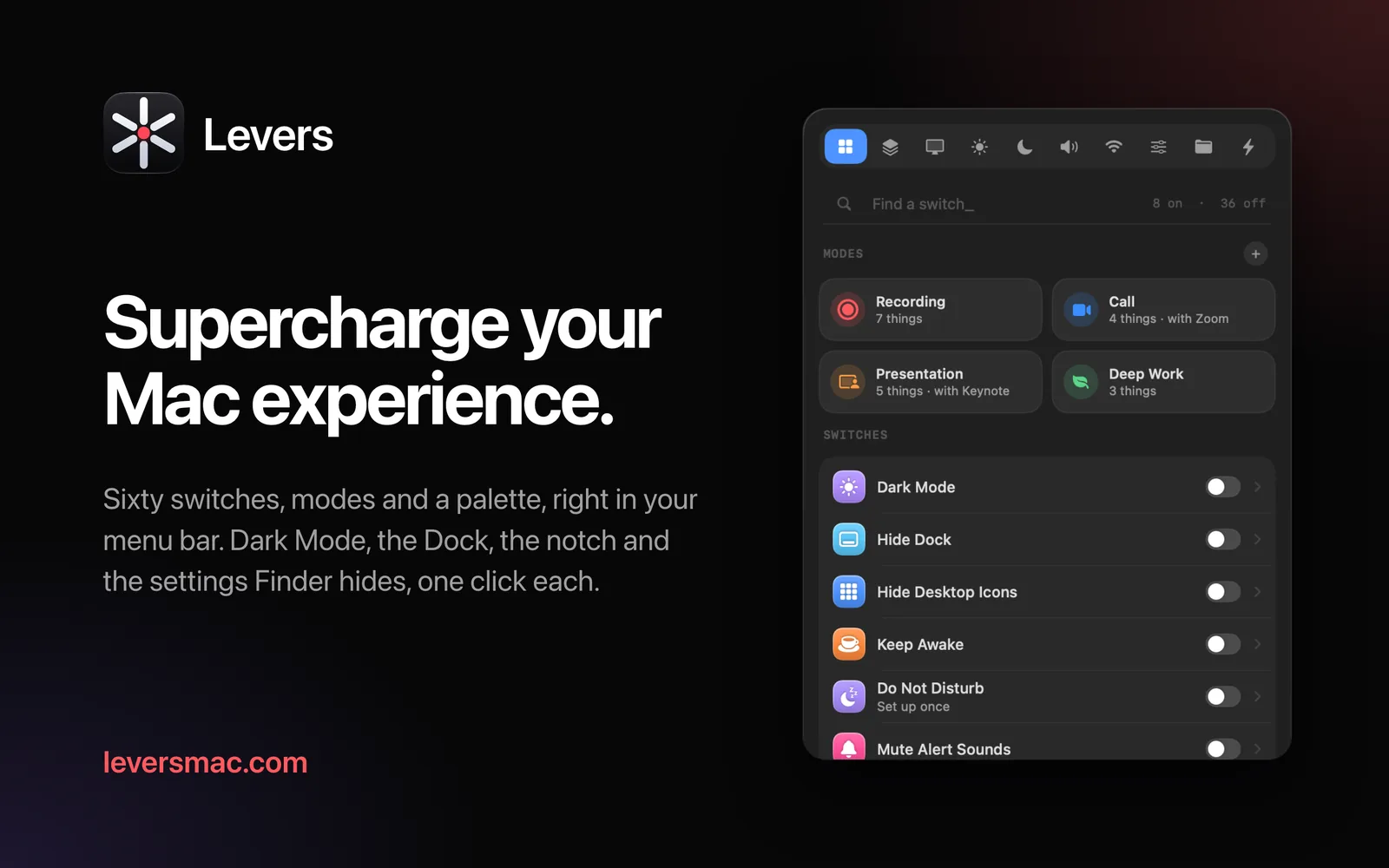
Levers lives in your menu bar and has four main parts:
- Recording Mode clears your screen when you share or record it, and puts it all back afterwards.
- Sixty switches and actions change Mac settings with one click, including some that System Settings does not have.
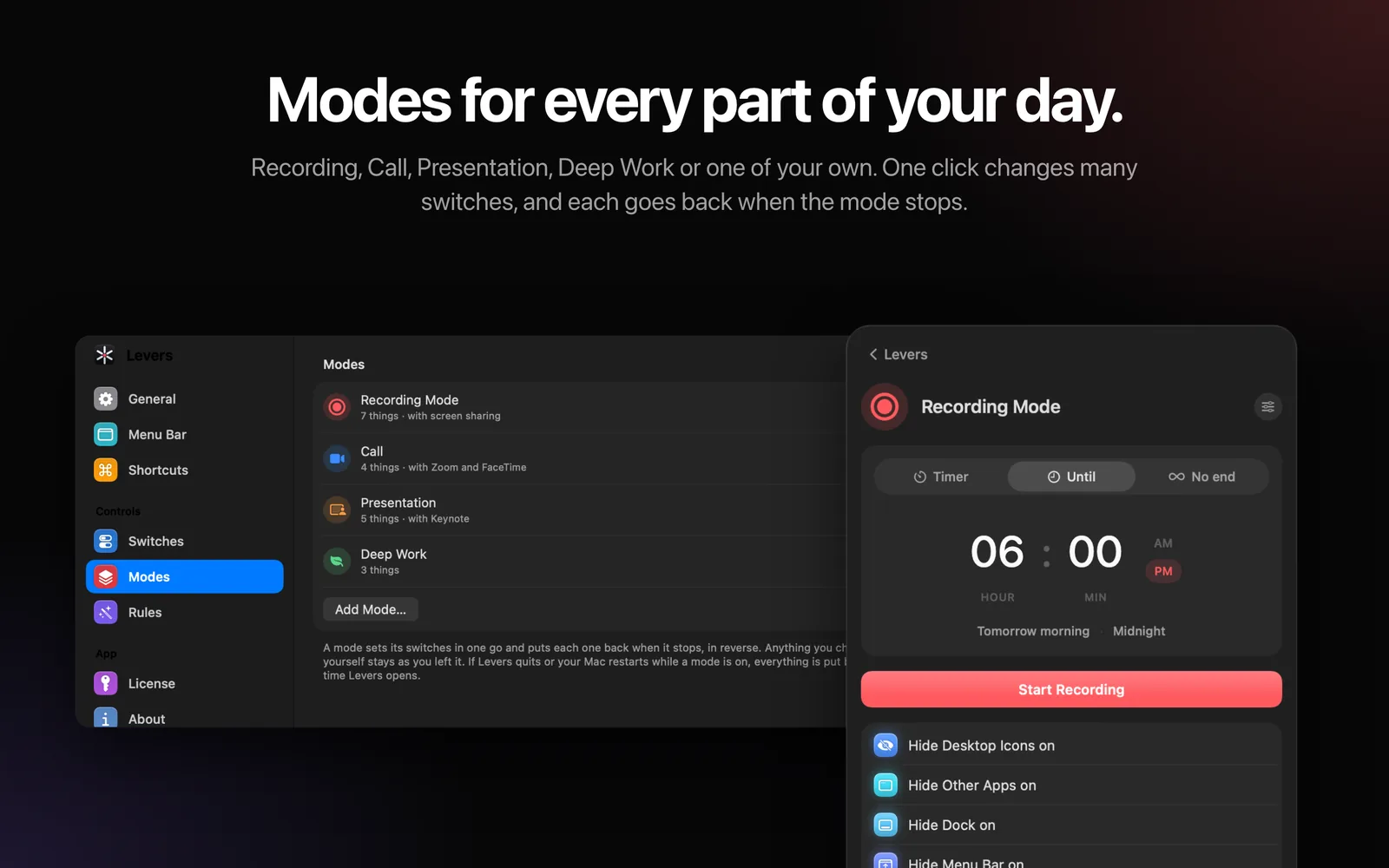
- Modes change several settings at once for a call, a presentation or an hour of deep work, then undo them.
- The palette lets you find and run any switch from the keyboard with ⌃⌥Space.
It runs on macOS 15 Sequoia or later, on Apple silicon and Intel Macs. There is no account and no analytics.
Recording Mode: a clean screen when you share
Recording Mode starts by itself when an app begins capturing your screen, such as Zoom, Google Meet, Microsoft Teams, Screen Studio or QuickTime. A screenshot does not start it. When the capture ends, Recording Mode stops.
Depending on what you choose in Settings, it can:
- Hide desktop icons, other apps, the Dock and chosen menu bar icons
- Put a color, gradient or blurred wallpaper behind the app you are showing
- Turn on Do Not Disturb, keep the Mac awake and mute alert sounds
- Switch Dark Mode, Night Shift or True Tone
- Set the screen to a recording resolution, such as 1920 × 1080
You can also start it by hand from the dropdown, with ⌃⌥⌘R, with Siri, or from a shortcut. Optional extras include a 3, 2, 1 countdown and a time limit.
How it puts things back. This is the most important part. Levers writes down how each setting was before it changes it, then undoes the changes in reverse when you stop. It only touches what it changed, so anything you changed back yourself stays as you left it. If Levers quits or your Mac restarts during a call, the next launch puts everything back.
Sixty switches, one click each
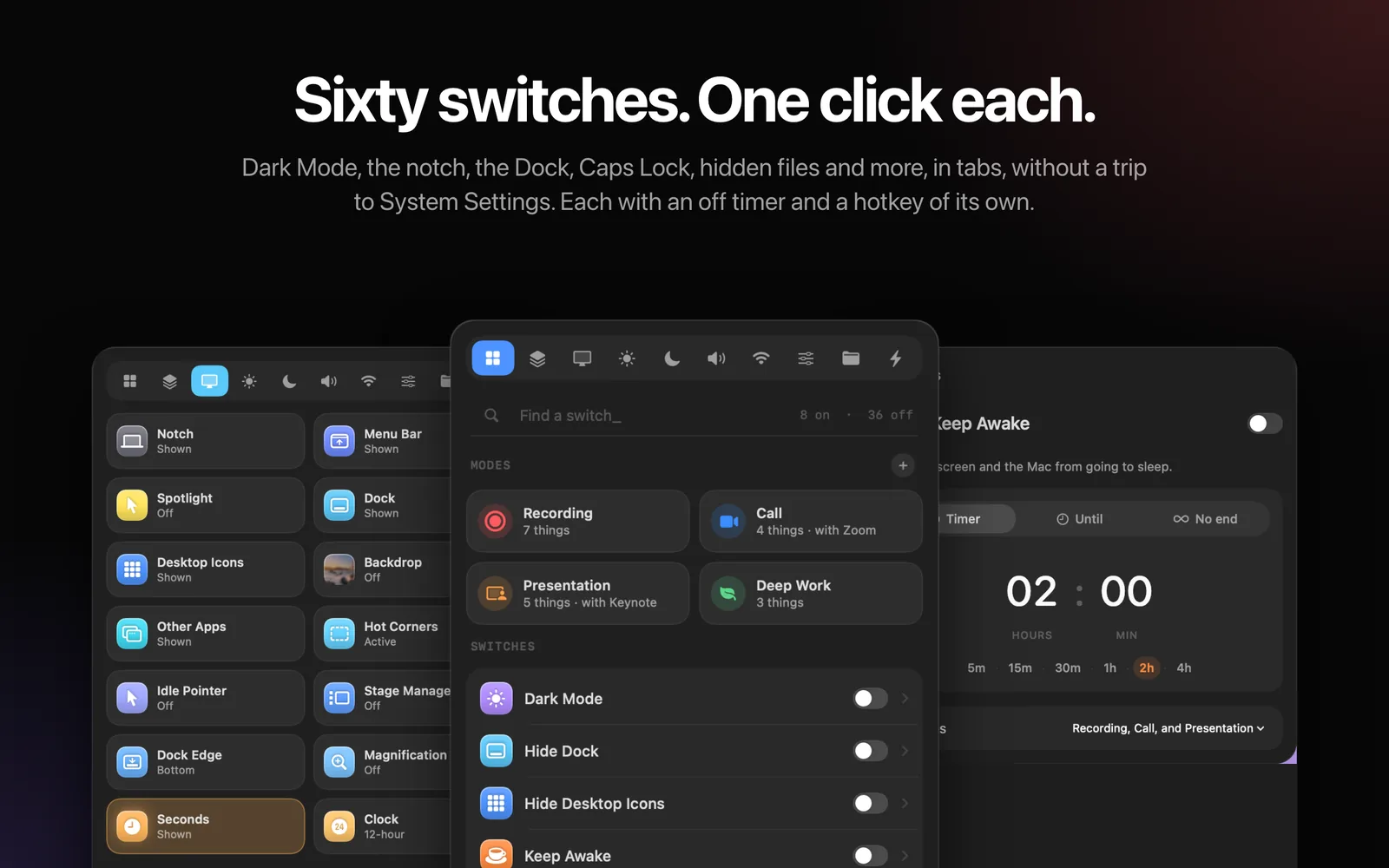
Levers has 46 switches and 14 actions, grouped in tabs. Each one changes something you would otherwise find in System Settings or look up a Terminal command for.
| Tab | Examples |
|---|---|
| Screen | Hide desktop icons, hide the Dock, hide menu bar icons, hide the notch, Pointer Spotlight, clock seconds |
| Display | Dark Mode, Night Shift, True Tone, Grayscale, Reduce Motion |
| Focus and power | Do Not Disturb, Keep Awake, Low Power Mode, Lock Keyboard, Cleaning Mode |
| Sound and connections | Mute microphone, mute alert sounds, AirPods, Wi-Fi, Bluetooth |
| System | Remap Caps Lock to Escape or Hyper, fast key repeat, default browser, Ask Before Quit |
| Actions | Empty Trash, Eject All Disks, Lock Screen, Quit Other Apps, Paste as Plain Text, Flush DNS |
A few stand out:
- Ask Before Quit. Pressing ⌘Q once does nothing. You hold it for a second to quit, so a slip of the finger does not close your work.
- Hide the Notch. Paints the top of your wallpaper black, so the notch blends into the menu bar.
- Cleaning Mode. A black screen that ignores the keyboard and trackpad while you wipe them.
- Remap Caps Lock. Turns Caps Lock into Escape, or into a Hyper key for your own shortcuts.
Any switch can have its own hotkey and an off timer, and you can run it from Shortcuts or Siri.
Finder settings without Terminal
Several useful Mac settings are hidden in Finder: show file extensions, show hidden files, the path bar, the status bar and folders first. Usually you copy a Terminal command from a forum and restart Finder yourself.
In Levers, each is a switch, and Levers restarts Finder for you.
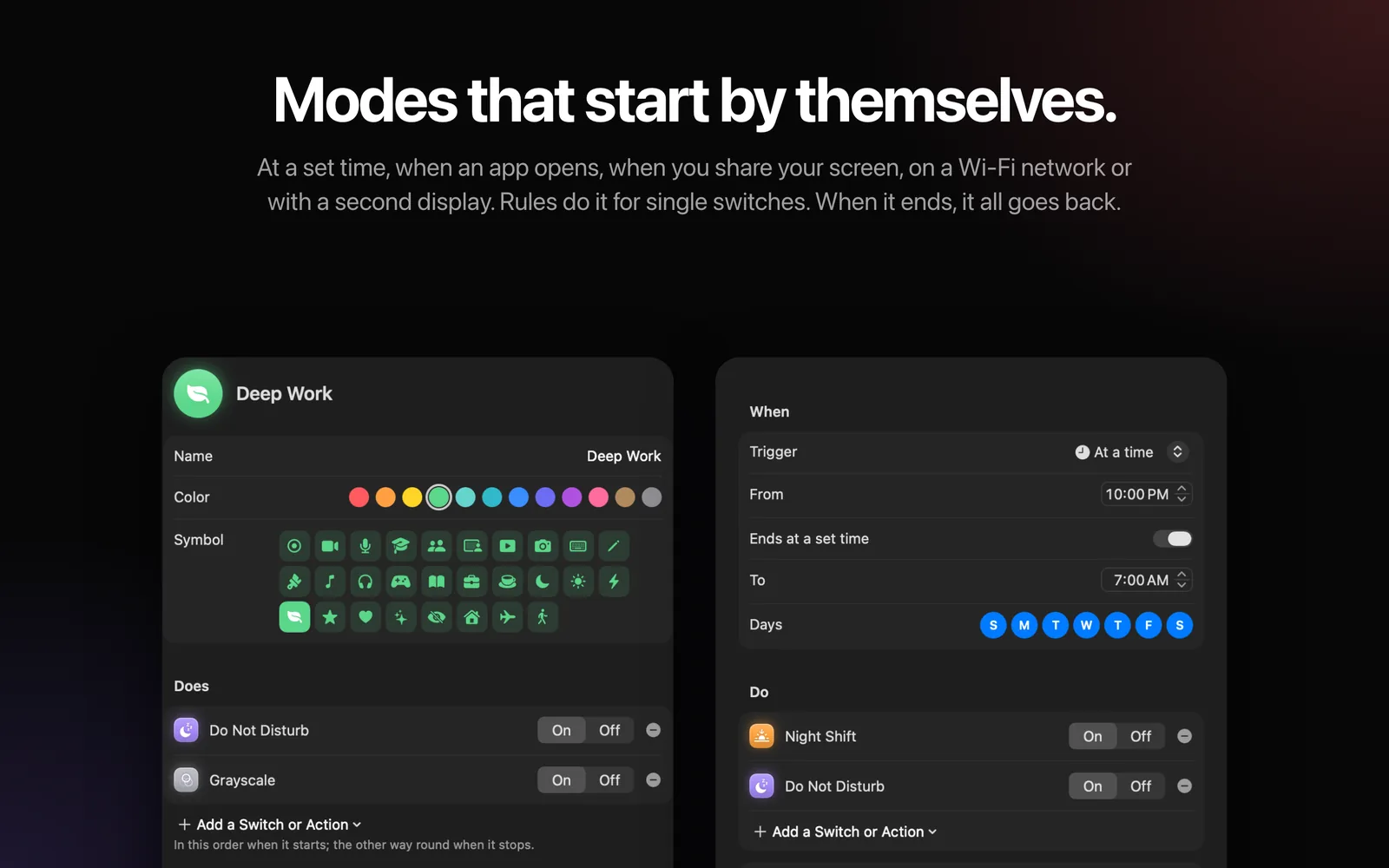
Modes: many settings at once
A mode is a set of switches for one job. Levers comes with Recording, Call, Presentation and Deep Work modes, and you can make your own from any switches.
A mode can start with a click or a hotkey, or by itself when:
- An app opens, such as Keynote or Zoom
- Your screen is shared or recorded
- It is a set time
- You join a Wi-Fi network
- A second display connects
- You are on the charger or on battery
- A Focus turns on
When a mode stops, each setting goes back the way it was. Rules do the same for single switches, such as turning on Night Shift at 10 PM.
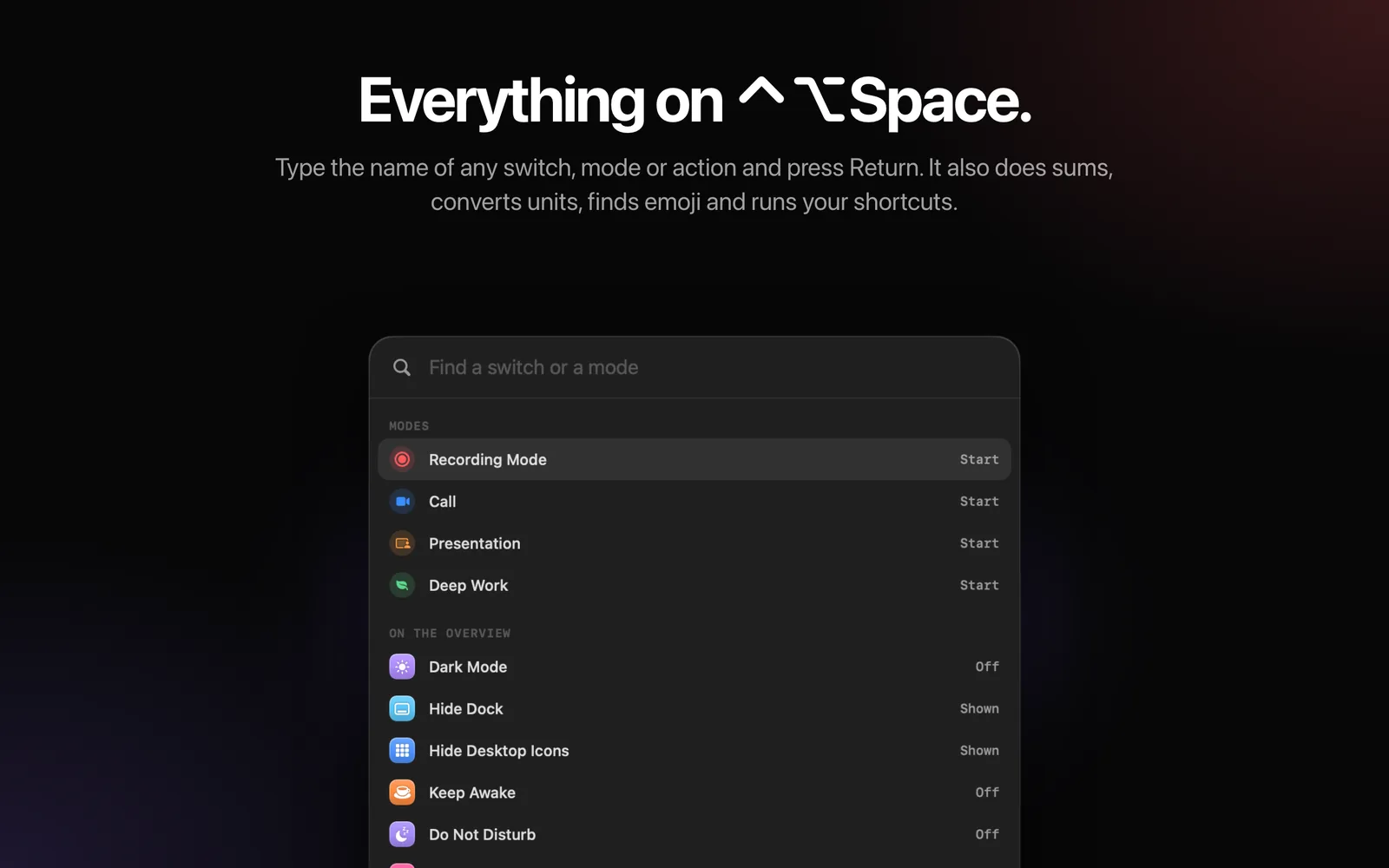
The palette: everything from the keyboard
Press ⌃⌥Space in any app and type a name. Return turns the switch on or off, starts the mode, or runs the action. The palette also does sums, converts units, finds emoji and runs your shortcuts.
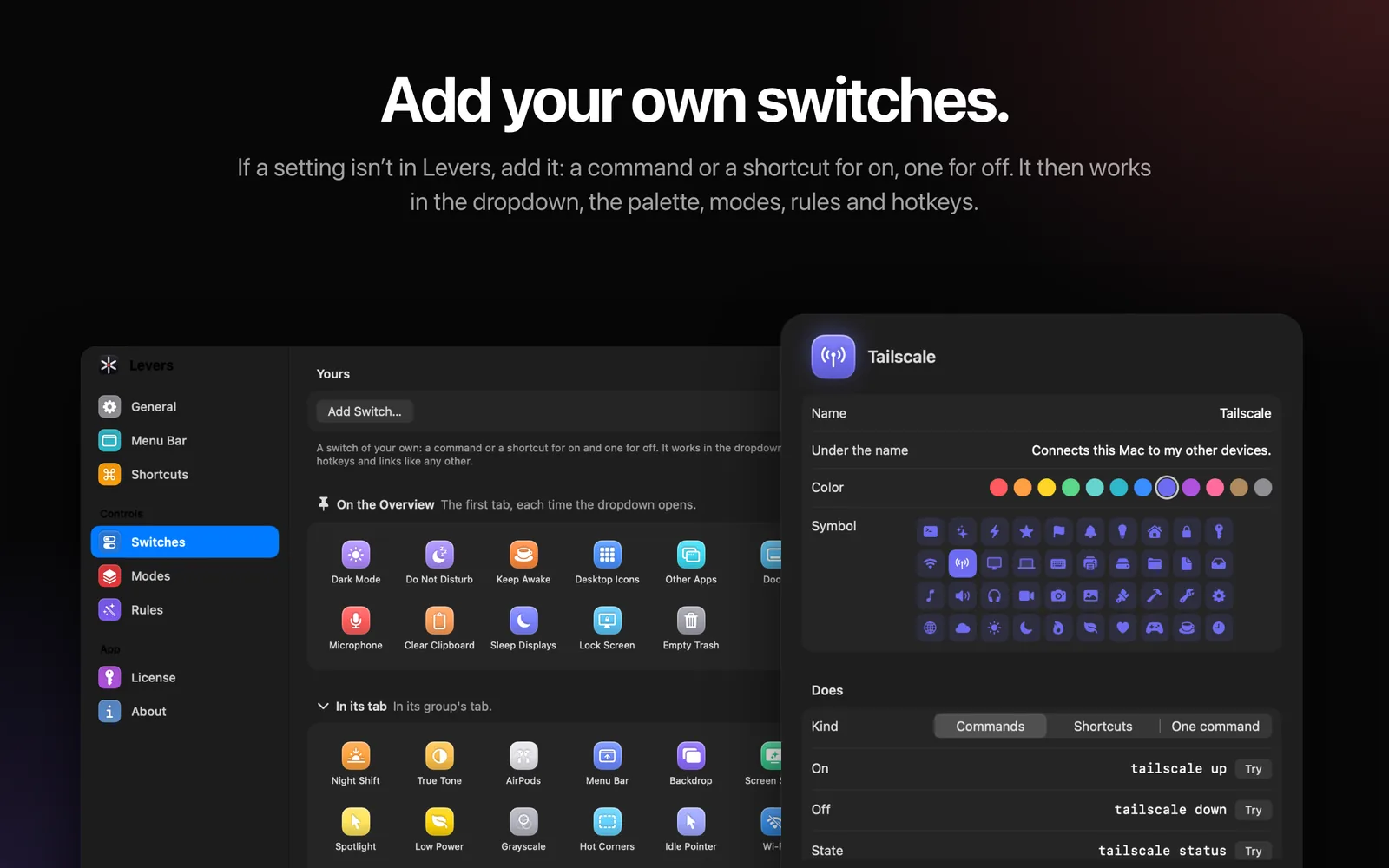
Add your own switches
If Levers does not have a setting you need, you can add it yourself. Give it a Terminal command or a shortcut for on, and one for off. It then works everywhere the built-in switches do: in the dropdown, the palette, modes, rules and hotkeys.
Two extras: Backdrop and Snow
Backdrop fills the screen behind the window in front with a color, a gradient, a picture or your own wallpaper blurred. It follows you as you switch apps, which is useful for demos and screenshots.
Snow, new in version 1.4, lets snow fall on your desktop for the holidays. It never shows in a screen share or recording, and it turns itself off on 7 January.
Levers pricing
Levers is a one-time purchase with every future update included. The current prices are launch prices.
| Plan | Launch price | Regular price |
|---|---|---|
| 1 Mac | $9 | $29 |
| 2 Macs | $15 | $58 |
| 5 Macs | $29 | |
| Fore Plus: Levers, Flit and Vitals | $49 | $167 if bought separately |
There is a 3-day free trial with every switch and mode, and no account or card. Every purchase has a 14-day refund. Students and teachers get half price.
Levers vs other apps that clean up your Mac for screen sharing
| Price | Starts by itself when you share | Puts everything back | Also a switches app | |
|---|---|---|---|---|
| Levers | $9 once (launch price) | Yes | Yes, even after a crash | Yes, 60 switches and actions |
| Stealthly | $12.99 once | Direct version only | Partly | No |
| Hush | Free, Pro $7.99 | Yes | Nothing to undo, it draws a blur | No |
| CleanShot X | $35 | While CleanShot records | Not stated | No, a screenshot and recording app |
| One Switch | $4.99 | No | Not stated | Yes |
| OnlySwitch | Free | No | Not stated | Yes, about 40 switches |
| Bartender | $25 | No | Not applicable | No, menu bar icons only |
Prices are each maker's lowest listed price at the time of writing.
Stealthly is the closest match and is on the Mac App Store. Starting by itself when you share, and hiding the Dock, need its direct version, and it does not reopen hidden windows for you.
Hush is a good free option if you only want a blur over the desktop. Hiding notifications is not listed.
CleanShot X makes sense if you also need a screenshot and recording app. The cleanup is a small part of it.
One Switch and OnlySwitch give you switches, but you flip them one at a time, with no single cleanup that undoes itself.
Bartender is a deep tool for menu bar icons, and does nothing else.
Levers is the only app here that combines a full set of switches with a cleanup that starts by itself and puts everything back.
What macOS can do without an app
If you share your screen once in a while, macOS covers most of it by hand:
- Hide desktop items: System Settings › Desktop & Dock › Show Items, turn off On Desktop
- Hide the Dock: System Settings › Desktop & Dock › Automatically hide and show the Dock
- Stop notifications: System Settings › Notifications, turn off notifications while sharing
- Hide other apps: press Option-Command-H in the app you want to keep
The catch is that these are separate settings, and you have to remember to turn each one back.
Before you buy
It needs macOS 15 or later. Macs that cannot run Sequoia cannot run Levers.
It is not on the Mac App Store. You buy it from the Levers website, with checkout by Paddle.
Some switches ask for permissions. Levers asks only when you first use a switch that needs one, such as Accessibility for hiding menu bar icons, or Bluetooth for AirPods.
Launch prices will go up. After the launch, Levers is $29 for one Mac. What you pay now is what you keep, with free updates.
Who it suits
If you share your screen or record videos often, Recording Mode takes care of the setup before every call, so nothing private shows on screen.
If you present, teach or record demos, modes and Backdrop give you a clean, consistent screen every time.
If you are a developer or power user, the Finder switches, Caps Lock remap, fast key repeat and your own switches save trips to Terminal.
If you dislike subscriptions, Levers is one payment with lifetime updates.
Questions people ask
How do I hide my desktop when screen sharing on a Mac?
In macOS, go to System Settings › Desktop & Dock and turn off On Desktop under Show Items. With Levers, Recording Mode hides desktop icons, other apps, the Dock and notifications automatically when you start sharing, and brings them back when you stop.
Does Levers put everything back after a call?
Yes. Levers records each setting before it changes it and undoes the changes in reverse when you stop, even if Levers quits or the Mac restarts during the call.
Which apps start Recording Mode?
Any app that captures your screen, such as Zoom, Google Meet, Microsoft Teams, Screen Studio or QuickTime. A screenshot does not start it.
How much does Levers cost?
$9 for one Mac at the launch price, $15 for two and $29 for five, paid once. After the launch, it is $29 for one Mac.
Is there a free trial?
Yes. Levers has a 3-day free trial with every switch and mode, and no account or card. Every purchase also has a 14-day refund.
Does Levers collect any data?
No. There is no account and no analytics. Levers only goes online to check your license and for updates.
Verdict
Levers solves a small problem that comes up every time you share your screen: getting your Mac ready, and putting it back afterwards. Recording Mode does this by itself, and its careful undo, even after a crash, is what sets it apart.
Around it, Levers adds sixty switches, modes and a palette that save a lot of trips to System Settings and Terminal. At $9 once during the launch, with a 3-day trial, you can try it on your next call.
Browse more of our product reviews.
Want a review like this for your own product? Order a StartupBase review.
Mac Apps
Productivity


 Continue with Google